Skip to content
Managing Blocks

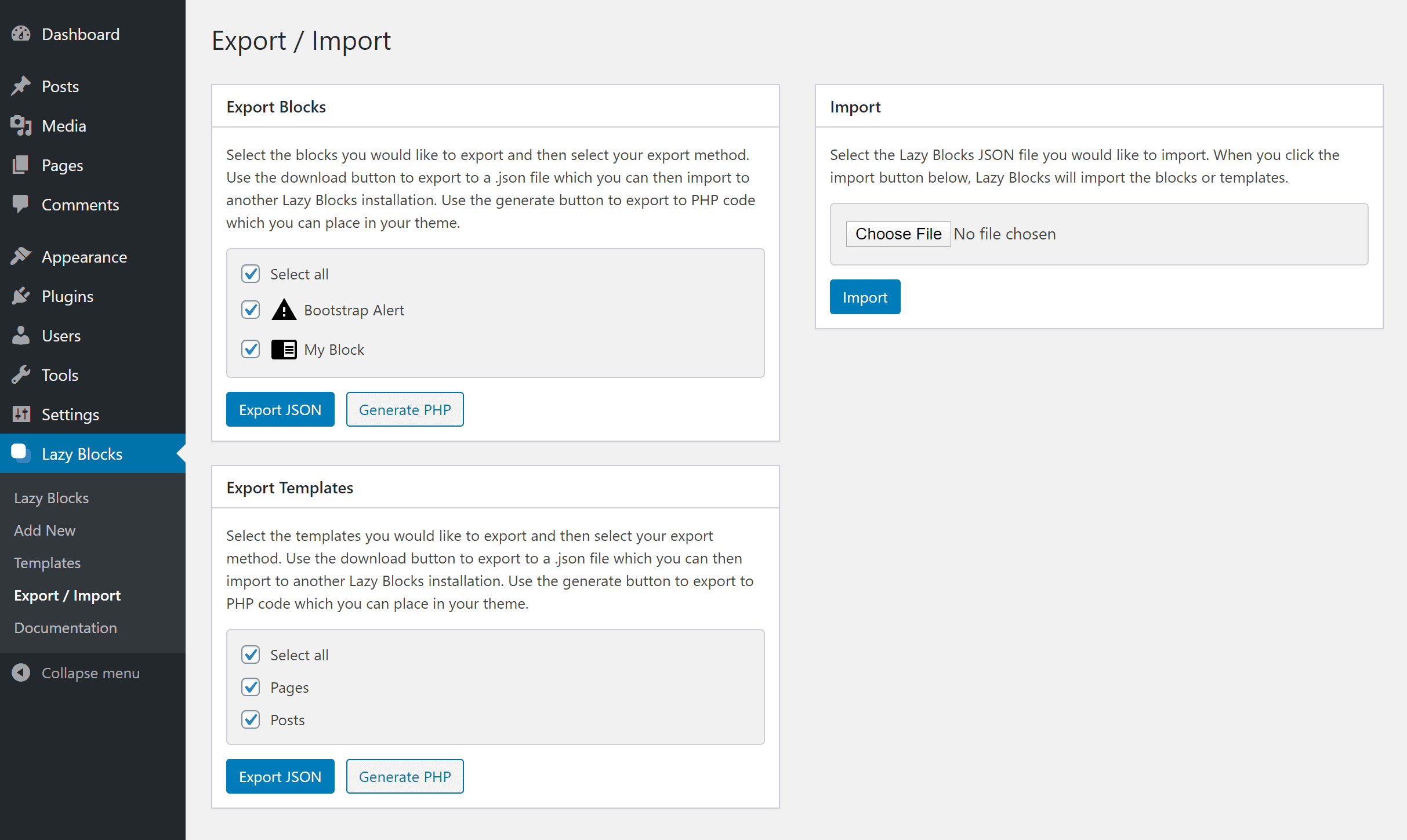
Export / Import

Blocks and templates leave the site as a JSON file for another WordPress install, or as PHP code to keep in a theme or a plugin.

The screen is Admin Menu → Lazy Blocks → Export / Import and opening it takes the manage_options capability. Blocks and templates are exported apart from each other, each to its own file.

Export options

JSON export

Export options in Lazy Blocks

Export JSON downloads the selection as one file, named after what it holds and the day it was made, lzb-export-blocks-2026-09-09.json for blocks and lzb-export-templates-2026-09-09.json for templates. This is the file the Import box takes, so JSON is the format for moving blocks to another site.

PHP export

Generate PHP gives you code to keep in a theme or a plugin, and under version control with it.

The Lazy Blocks plugin must be active for exported PHP code to work.

The code is a single add_action( 'lzb/init', ... ) wrapper with one call inside it per selected item:

PHP
add_action( 'lzb/init', function() {
    lazyblocks()->add_block( array(
        'title'    => 'Testimonial',
        'slug'     => 'lazyblock/testimonial',
        'icon'     => '<svg xmlns="http://www.w3.org/2000/svg" ...></svg>',
        'category' => 'text',
        'controls' => array(
            array(
                'type'      => 'text',
                'name'      => 'author',
                'label'     => 'Author',
                'placement' => 'inspector',
            ),
        ),
        // The rest of the block settings follow here.
    ) );
} );

Templates use the same wrapper and add_template() instead:

PHP
add_action( 'lzb/init', function() {
    lazyblocks()->add_template( array(
        'title'         => 'Product Page',
        'post_types'    => array( 'product' ),
        'template_lock' => 'insert',
        'blocks'        => array(
            array( 'lazyblock/testimonial' ),
        ),
    ) );
} );

Export methods

Single block export

Export individual blocks directly from the blocks list:
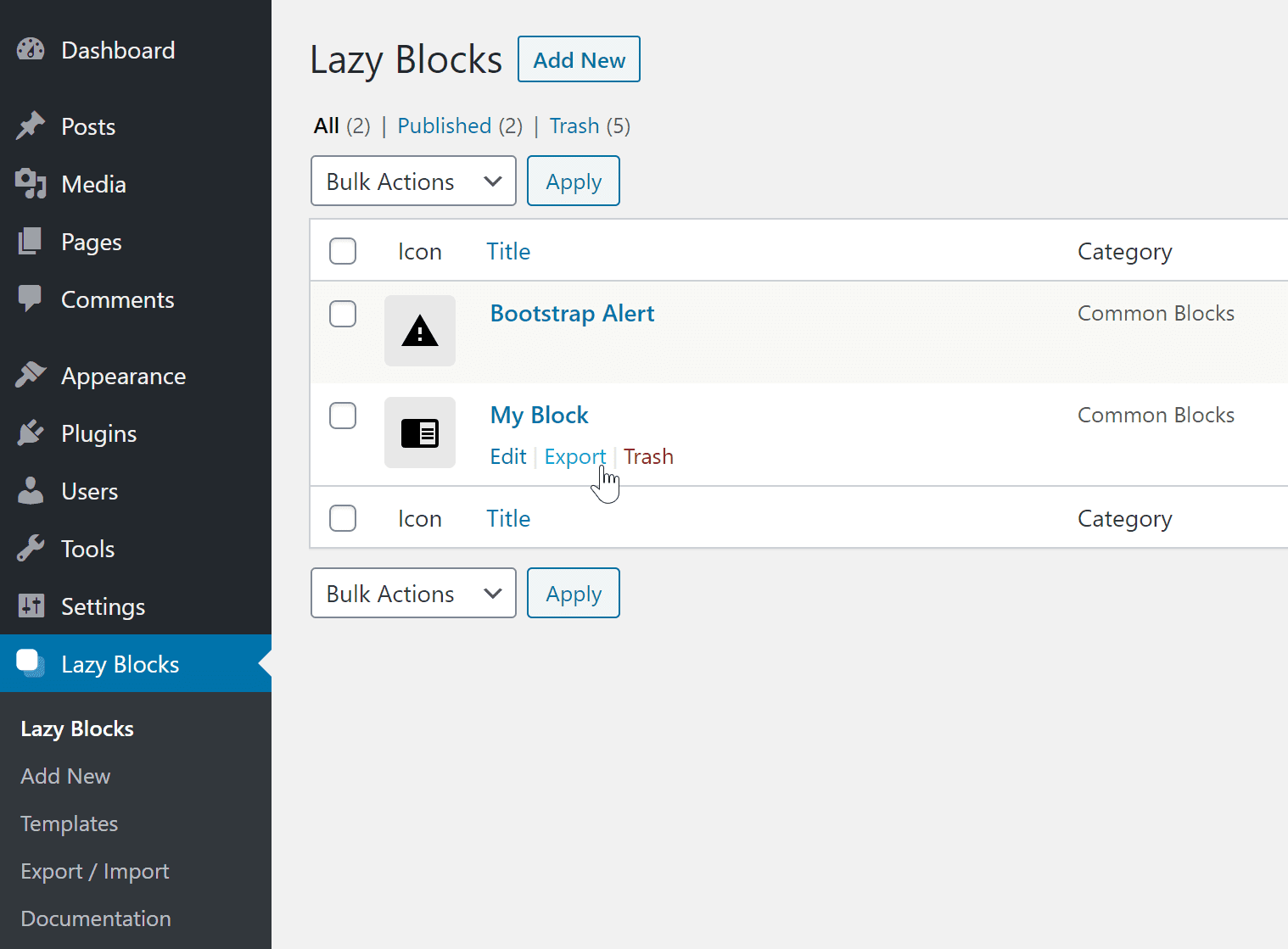
Single block export option

That row link only takes edit_lazyblocks, so somebody who cannot open the Export / Import screen can still export one block from the blocks screen.

Bulk export

Export multiple blocks at once using bulk selection:
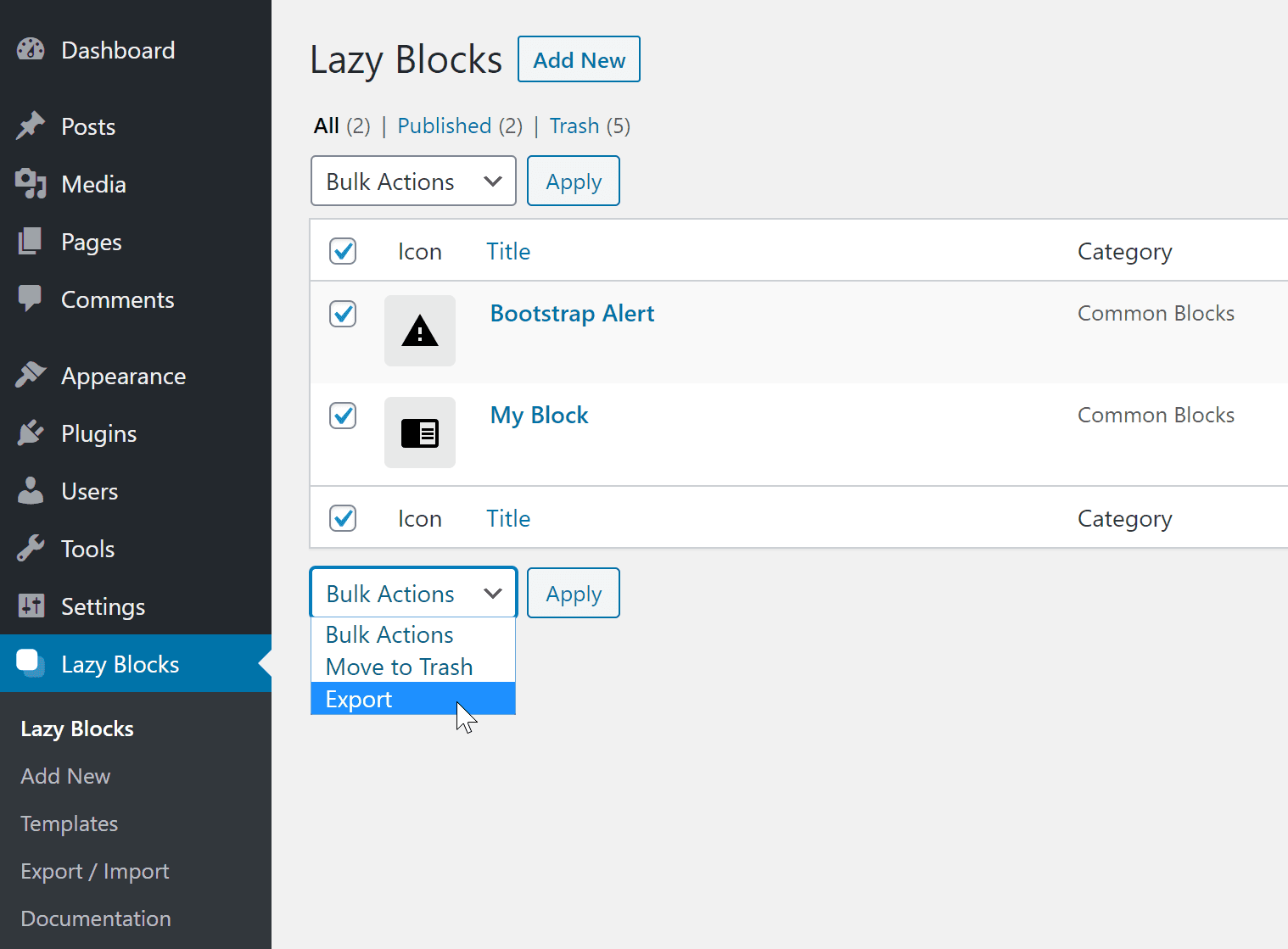
Bulk export selection

Template export

The Export Templates box is only rendered when the site has at least one template. It carries the same Export JSON and Generate PHP buttons as the blocks box and writes a separate file.

Import

The Import box takes one .json file, and the extension is the only thing checked before the file is read. A file that does not decode to an array is reported as Import file empty. A file that decodes but holds nothing Lazy Blocks recognises imports nothing and reports nothing.

  • Imported blocks arrive published, which is Active on the blocks screen.
  • Blocks are not deduplicated. Importing the same file twice gives you two copies of every block in it.
  • A template is refused when an existing template already covers one of its post types, with the notice Template for these post types 'product' already exists.

To change the data on its way in, filter the decoded file with lzb/import_json, or act on each new block with lzb/import/block.

Try demo blocks

Download our demo blocks package containing examples of all available controls:

Download Demo Blocks

After downloading, unzip the file before importing into WordPress.

Was this article helpful?

Copyright © 2026 Lazy Blocks.